Share and queueFound on the phone. Played by the box.
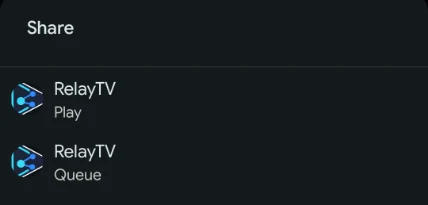
Android provides separate Play and Queue targets, including compatible local audio and video files.
- Share media from any compatible Android app.
- Choose RelayTV Play or RelayTV Queue.
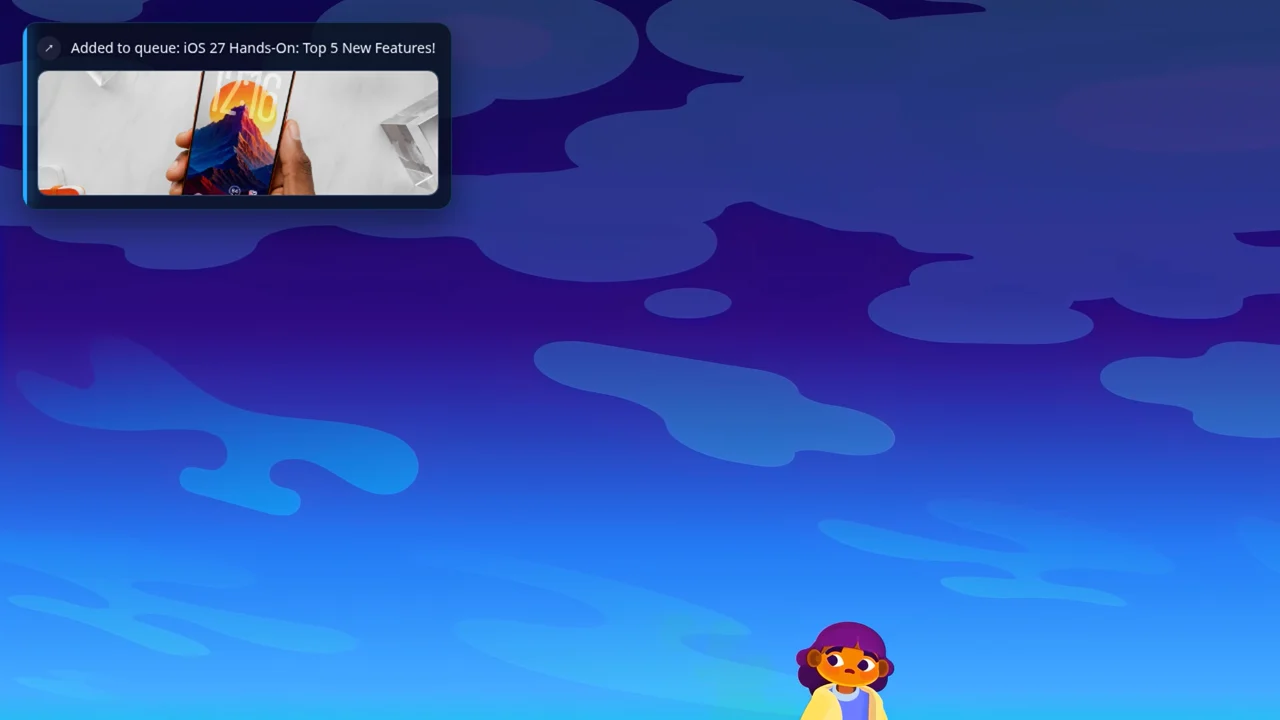
- The endpoint starts or stores it and confirms the action on TV.
Browse and playThe library stays off the TV until playback starts.
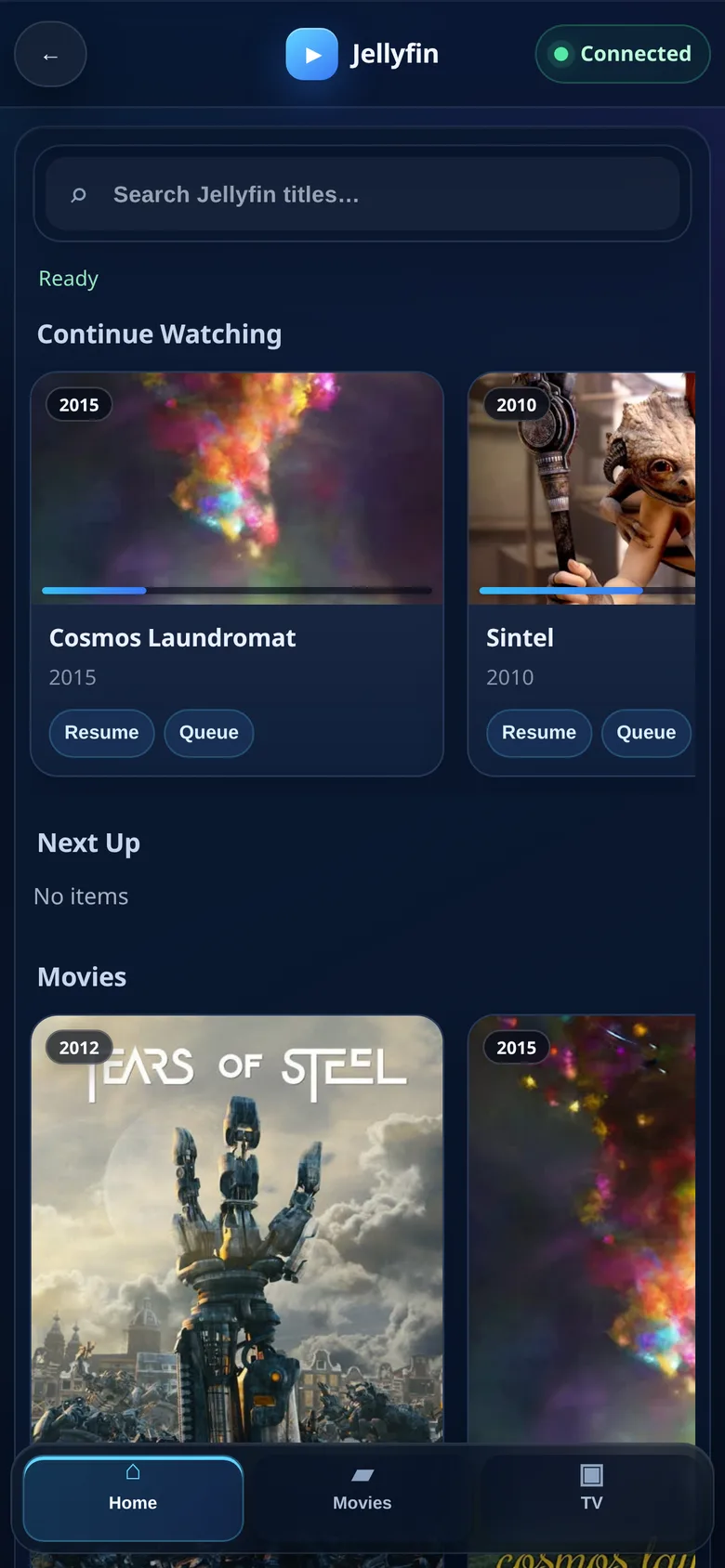
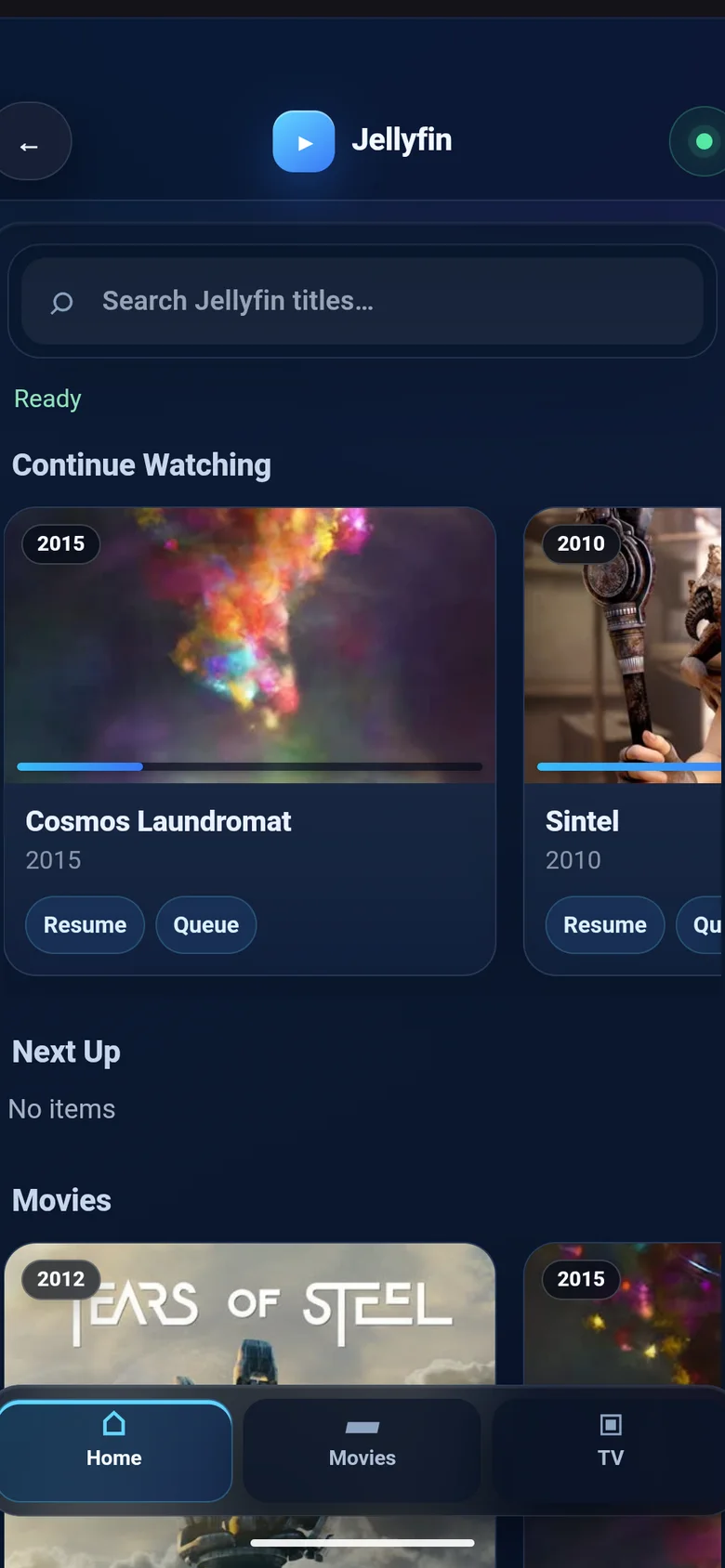
Browse the collection from a phone, keep progress and context visible, and choose exactly how the title enters the endpoint queue.
- Open Jellyfin or Emby from RelayTV’s library.
- Resume, play now, play next, or queue last.
- RelayTV resolves the media and renders it on the attached display.
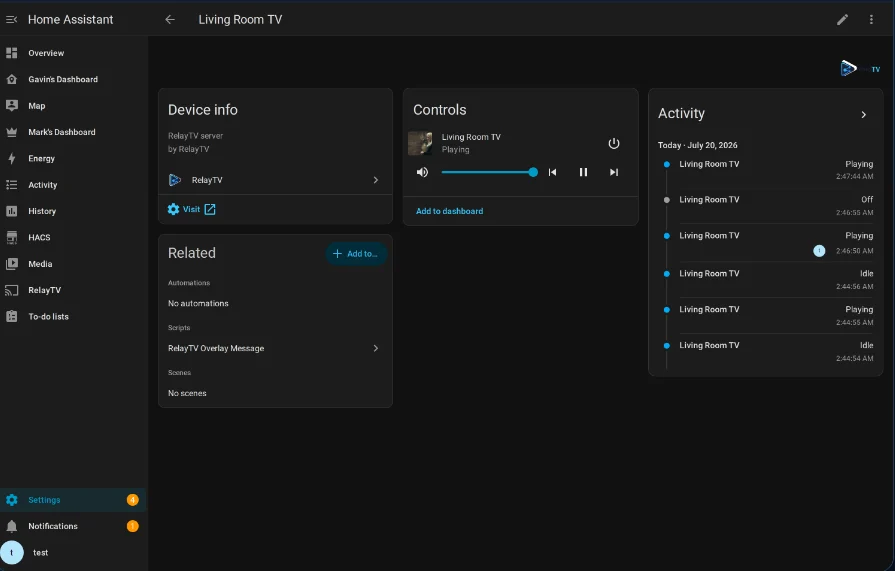
Automate the roomUse the TV without abandoning what was playing.
Home Assistant can send temporary media, place a message overlay, capture a frame, or coordinate multiple endpoints.
- An automation targets the RelayTV media_player.
- RelayTV shows the temporary media or overlay locally.
- For temporary playback, the original session resumes afterward.